How do I start recording?
On Monitor, choose Video or Locked-screen audio, then tap Start recording. Allow the camera or microphone when prompted. For a silent video, turn off Record microphone audio before starting. Tap Stop & save recording when you are done.
Can video keep recording when I lock my device?
Keep DogKona open and the device unlocked for video. Locking the device or leaving the app saves and ends the video clip. The dim screen and photo clock are in-app displays; they do not change this requirement. Use Locked-screen audio when you only need microphone recording while locked. Calls, interruptions, or low storage can end recording.
How do the photo clock and video background work?
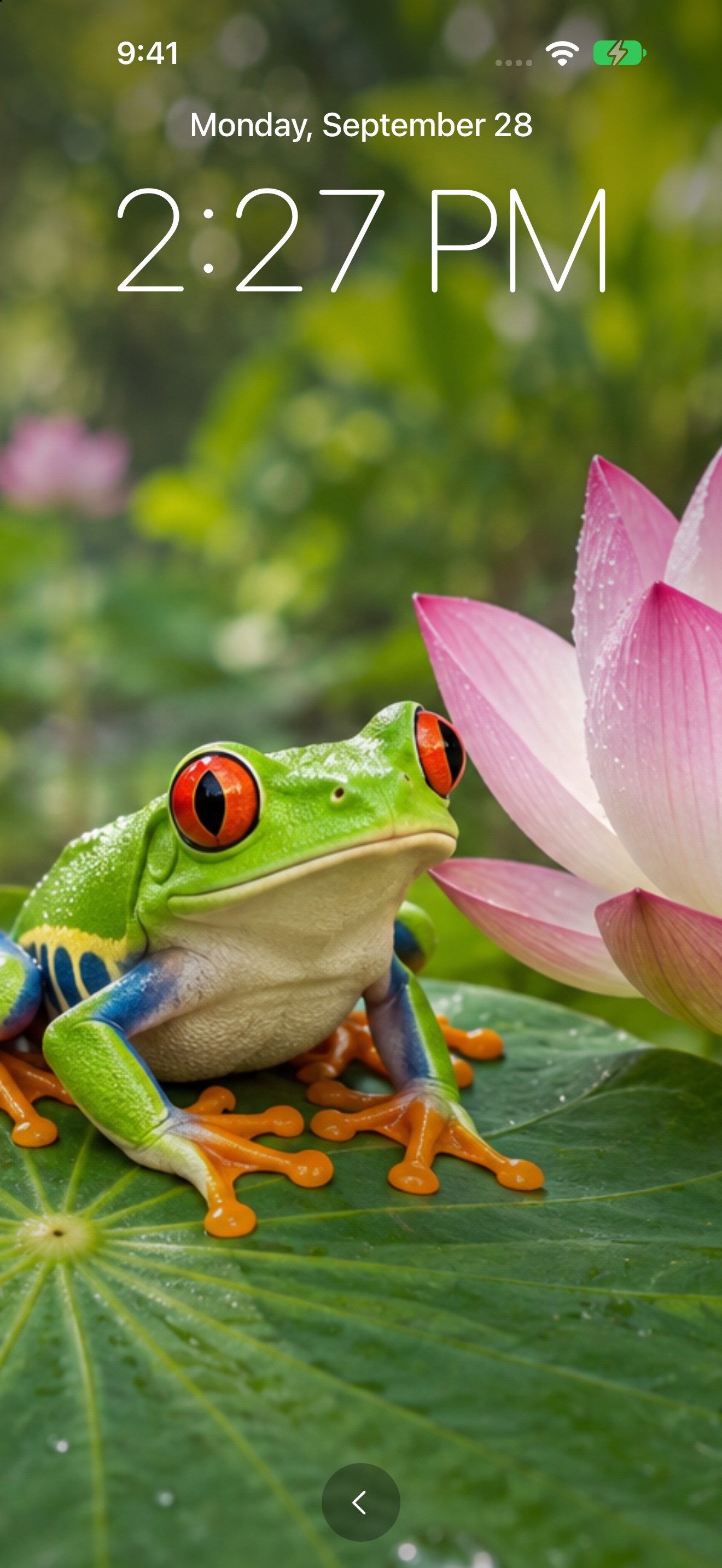
Before recording, choose a photo or video in the Photo clock card on Monitor. Show clock previews your photo with the current time and date; Photo + clock opens it during video recording. Play video loops an imported video without the clock. Playback sound is separate from Record microphone audio; speaker sound may be picked up by the microphone. Return using the bottom chevron. Photo clocks dim the display; video backgrounds use normal brightness.
What happens when loop recording is enabled?
Loop recording is off by default. In Settings, choose clip limits and a total video storage budget, then enable Loop recording. DogKona may permanently delete older local videos before a clip starts to reserve space. The newest completed video and audio files are kept. Exported copies are unaffected. There can be a short gap between clips; stopping, leaving the app, or an interruption ends the loop.
Where are my recordings and folder copies?
Open Recordings to play, rename, share, or delete a clip. In Settings → Saving folder → Choose folder…, select a destination for copies of new recordings. Existing clips are not moved. Keep DogKona open until “Saving copy to folder…” disappears. If copying fails, the local recording remains and looping stops. Local renames and deletions do not change exported copies.
Can I switch cameras while recording?
Yes. Changing the front/rear camera or physical lens saves the current clip and starts another, with a brief gap. Zoom adjusts within the current clip. Available lenses and zoom depend on your device. Each saved clip keeps the orientation selected when recording started.
What if camera or microphone access is denied?
Open your device’s Settings, find DogKona, and enable the permission you need. Silent video does not need microphone access. If recording stops unexpectedly, check free storage and whether a call, device lock, or another interruption occurred.
Which devices and languages does this page cover?
This guide covers DogKona for iPhone and iPad running iOS 17 or later, in portrait or landscape. The app supports 29 language options and follows your supported device language. Open Settings → Language → Change language… to choose an app language. Stop recording before changing it.
How do I delete my data?
Delete individual clips in Recordings. Uninstalling DogKona removes its local app data. Manage exported files, shared copies, and device backups separately in their destinations. No DogKona account is required.